

Add-New-Product
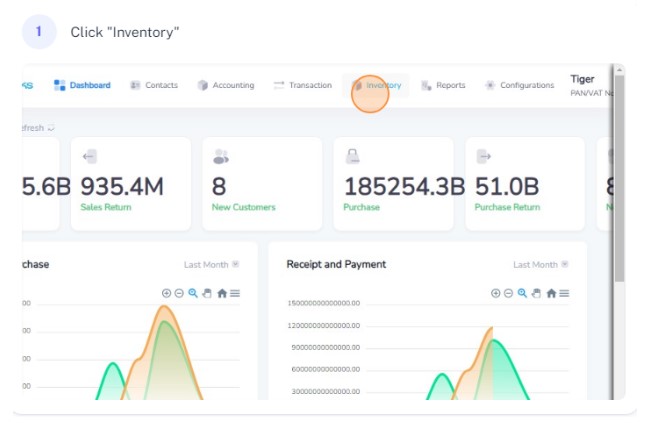
Click on Inventory on the navigation bar
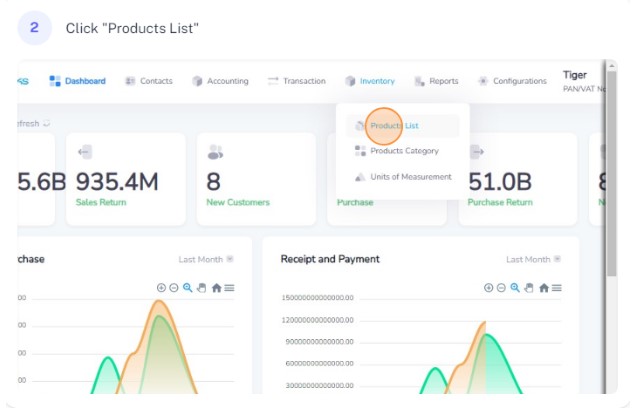
Select product list from the dropdown
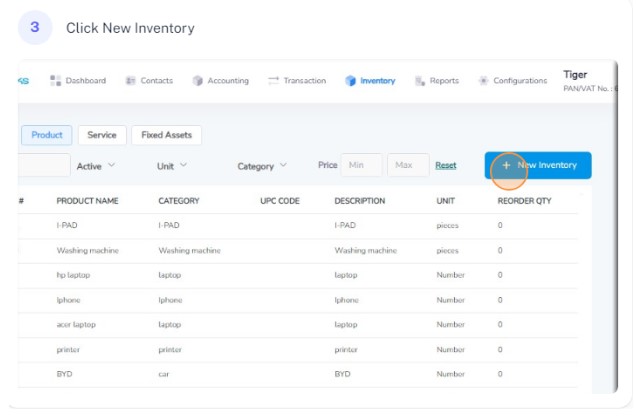
Click on New Inventory
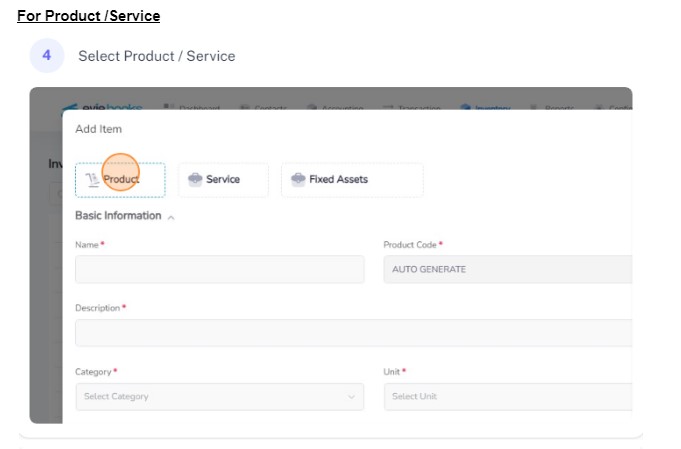
For Product/Service, follow the steps below
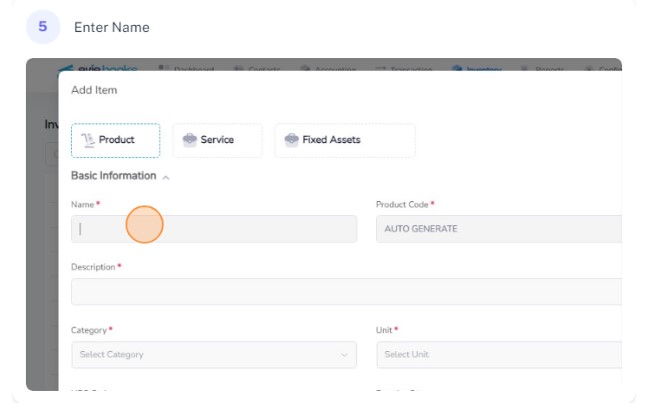
Enter the name of the product/service
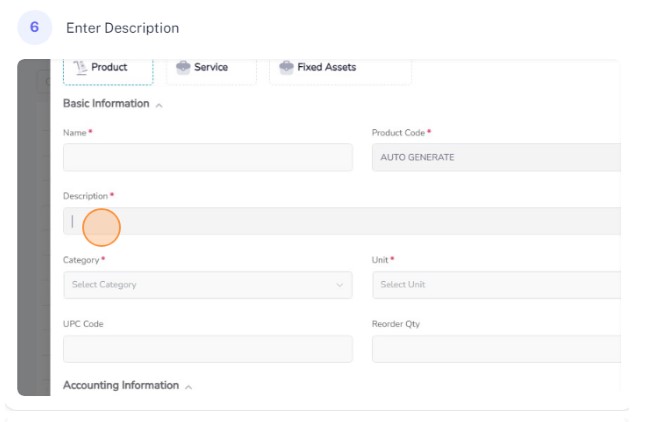
Enter the description of the product/service
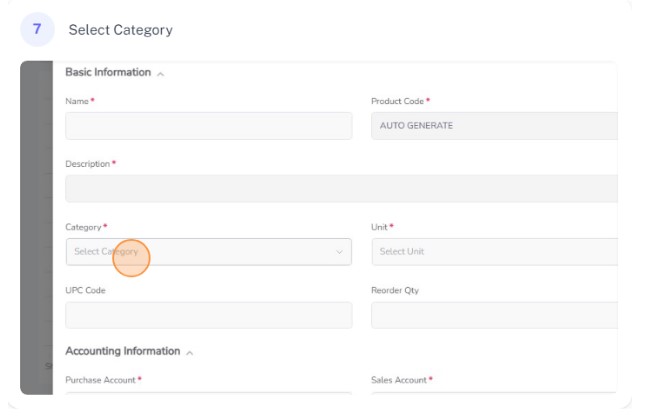
Select the category of the product/service
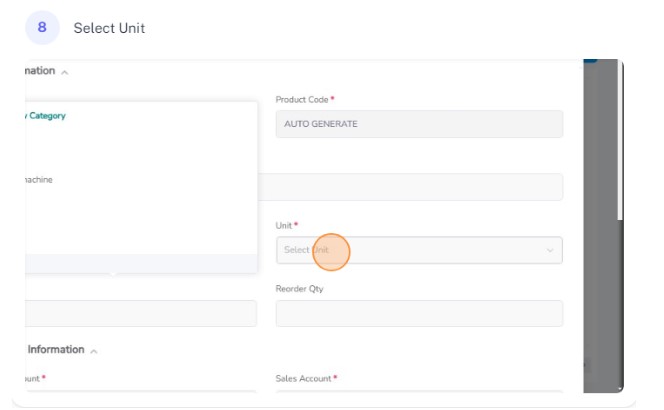
Select the unit of the product/service
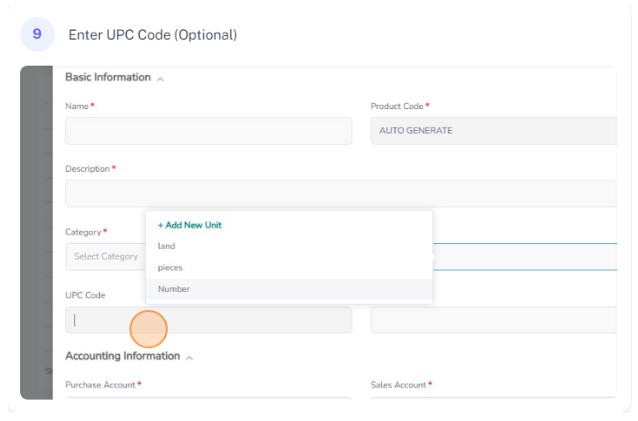
Enter the UPC code of the product/service (Optional)
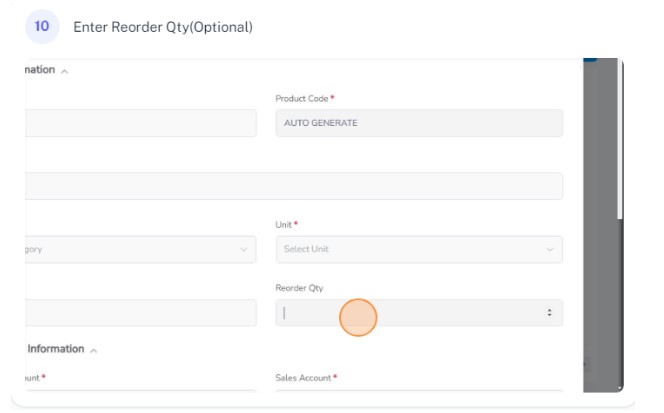
Enter the reorder quantity of the product/service (optional)
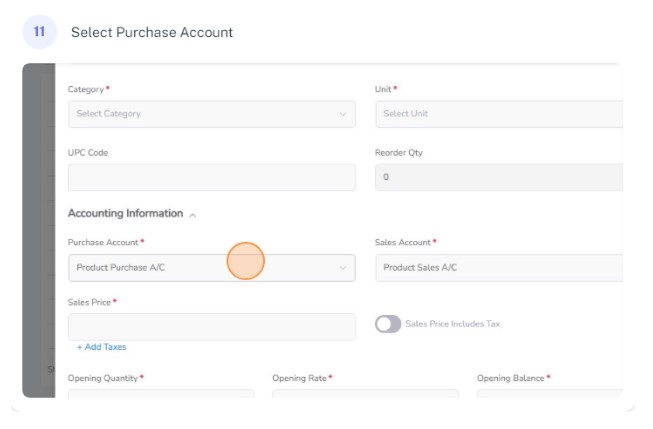
Select the purchase account for the product/service
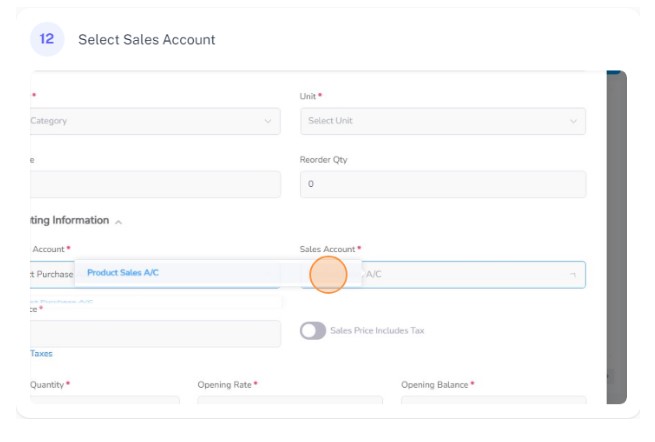
Select the sales account for the product/service
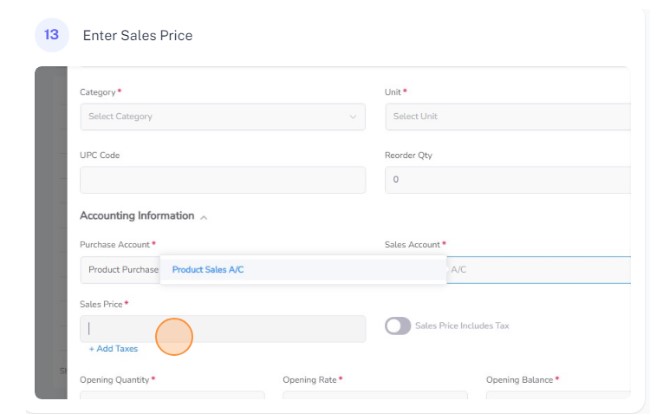
Enter the sales price for the product/service
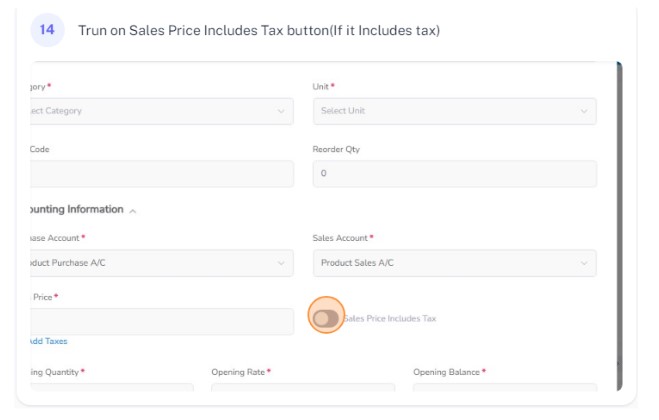
Turn on Sales Price includes Tax button (if it includes tax)
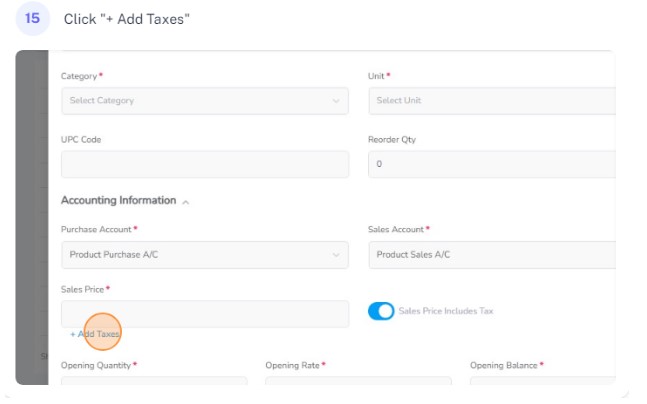
Click on Add Taxes to add taxes to the product/service
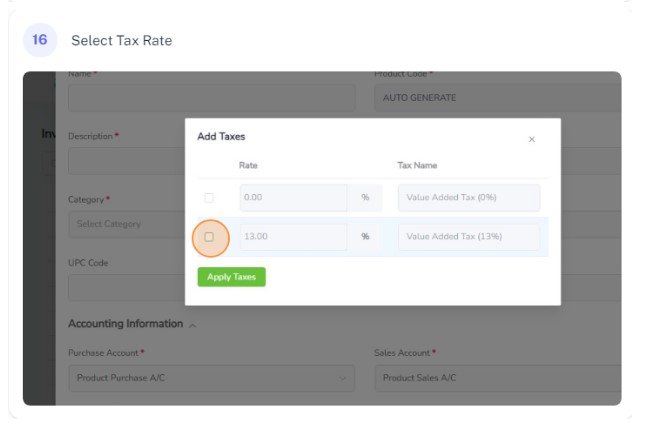
Select the tax rate of the product/service
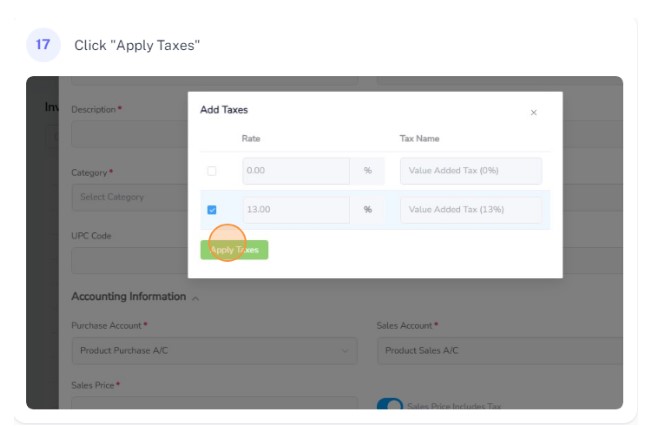
Click on Apply Taxes to add the taxes to the product/service
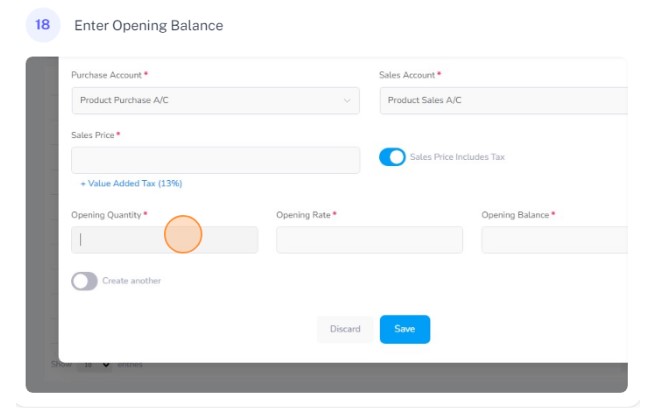
Enter the opening quantity for the product/service
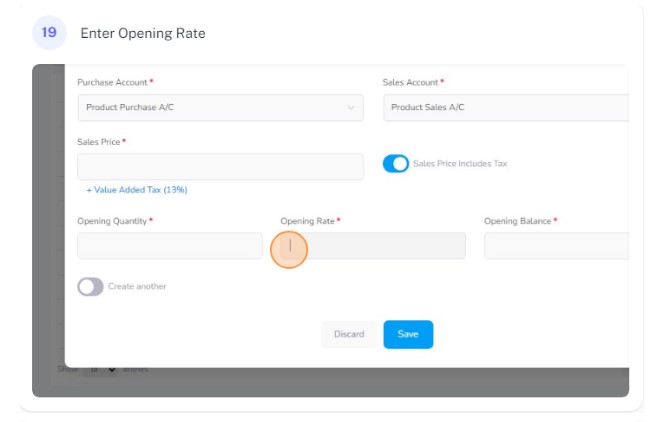
Enter the Opening rate of the product/service
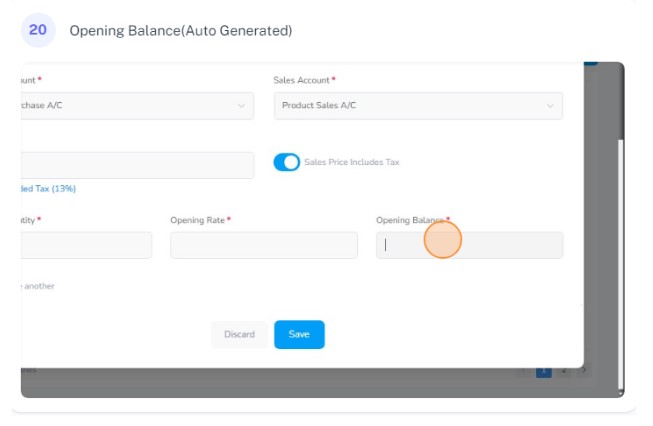
Enter the opening balance for the product/service (If left empty, Auto generated as 0)
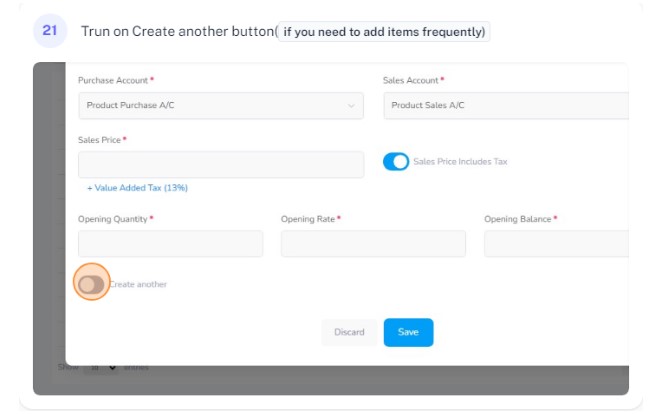
Turn on create another button to add other item after saving one
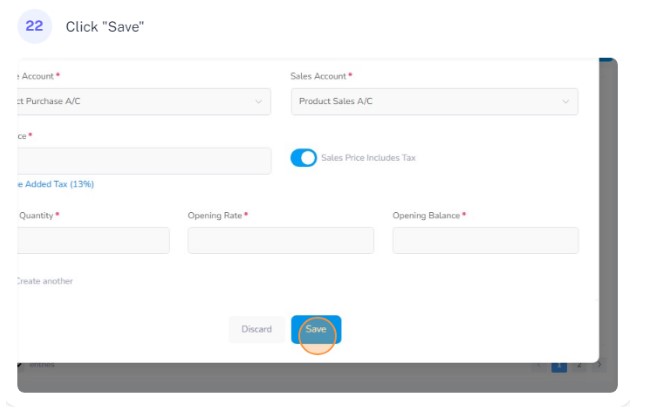
Click on the save button to save the product/service
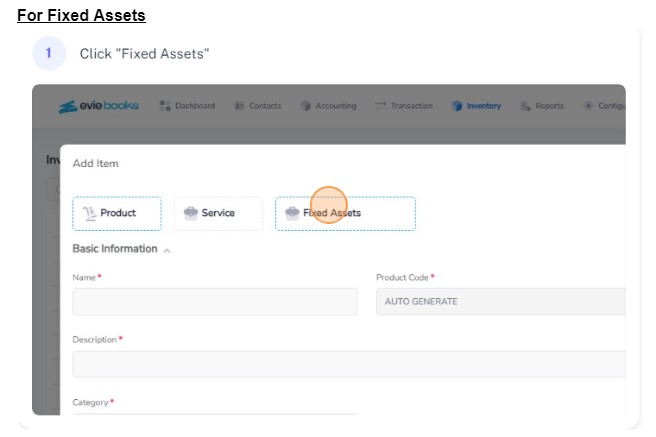
For Fixed Assets, Click on fixed assets and follow the steps
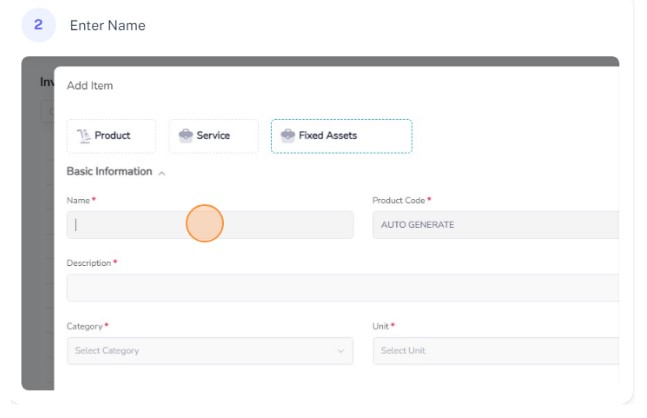
Enter the name of the asset
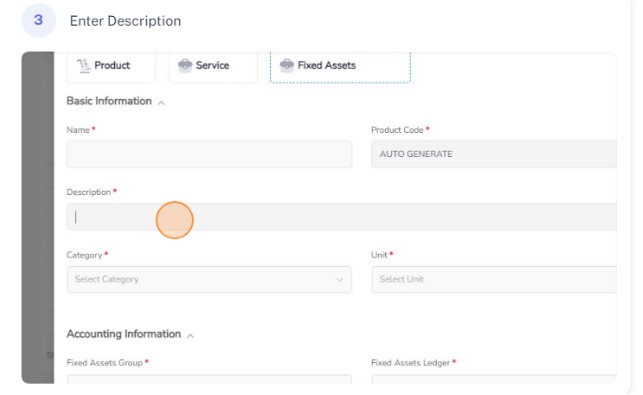
Enter the description for the asset
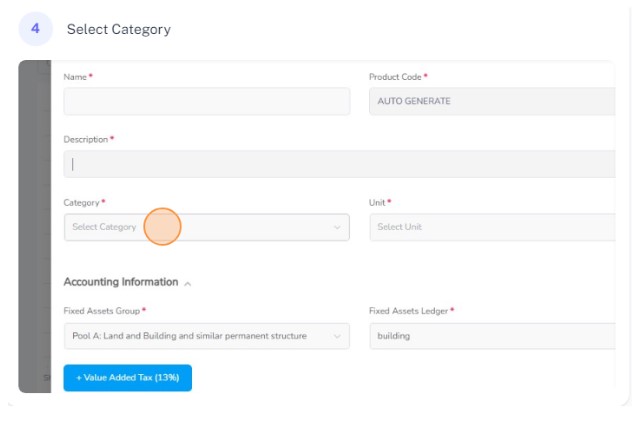
Select the category for the asset
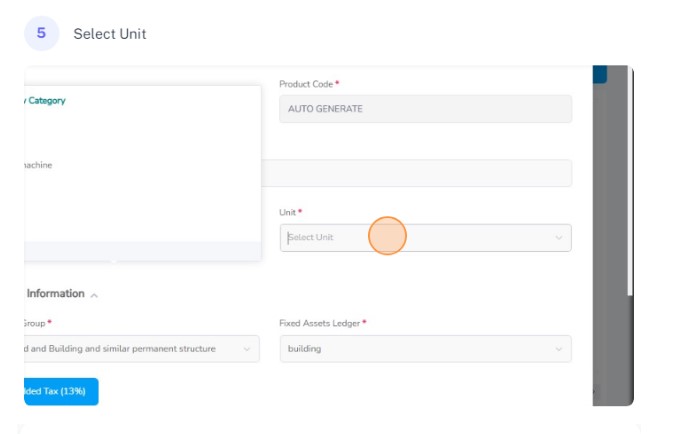
Select the unit for the asset
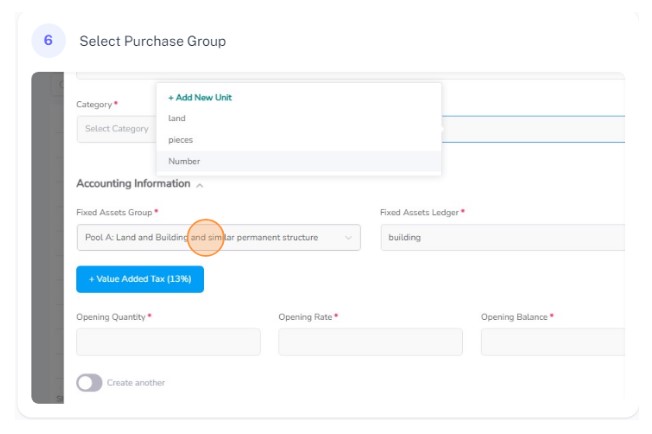
Select the purchase group for the asset
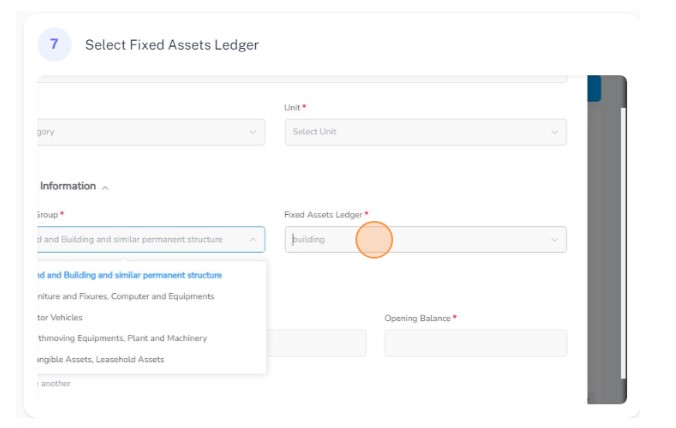
Select the fixed asset ledger from the dropdown
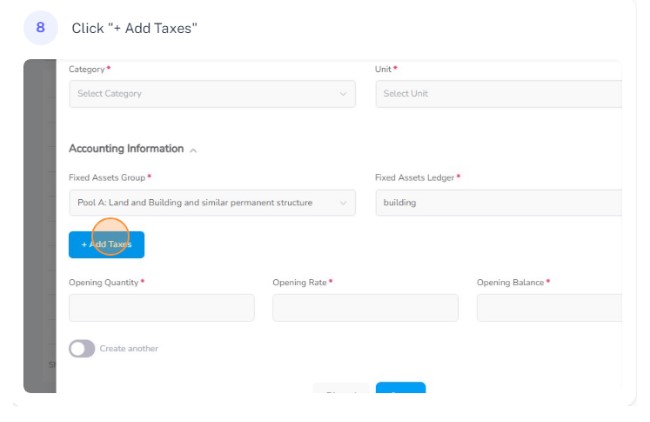
Click on add taxes to add tax to the asset
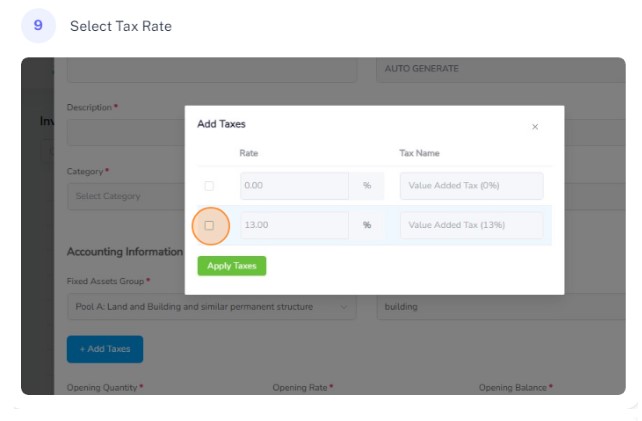
Select the tax rate of the asset
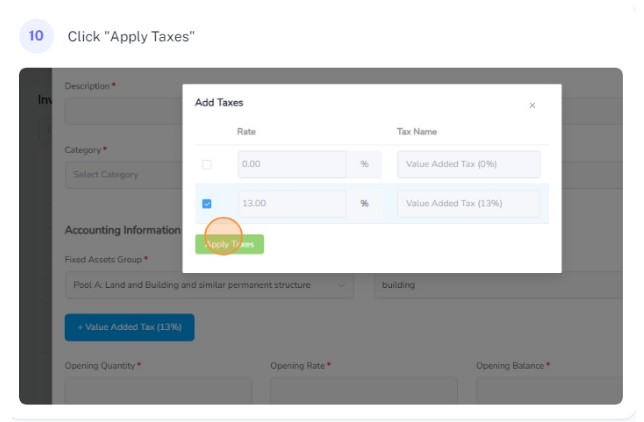
Click on apply taxes to apply required taxes to the asset
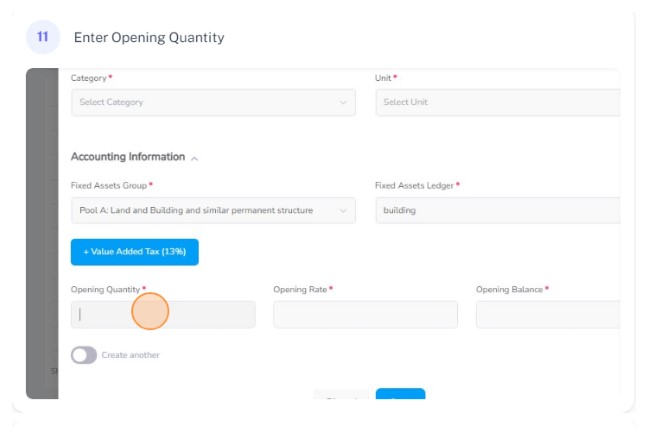
Enter the opening quantity of the asset
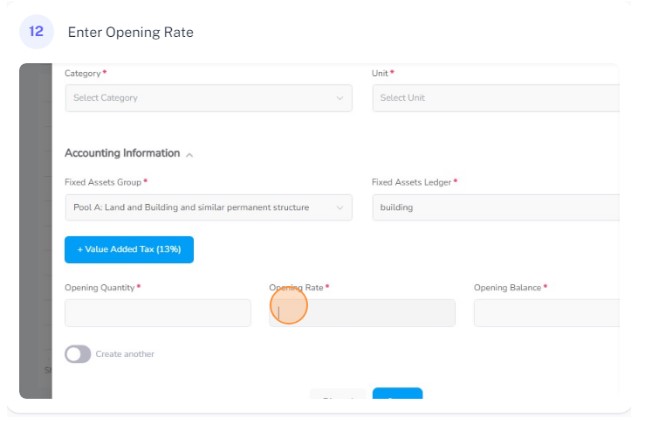
Enter the opening rate of the asset
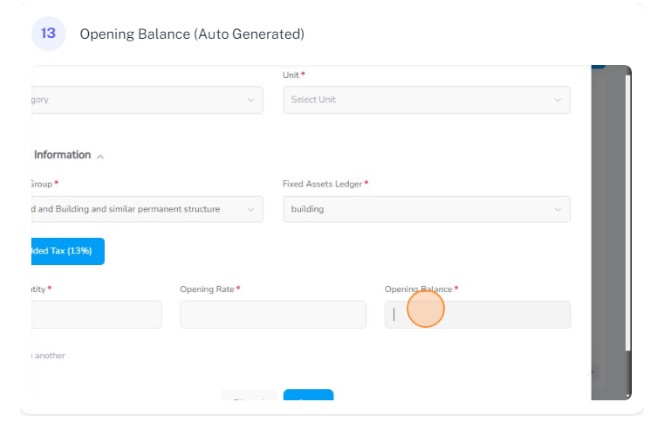
Enter the opening balance of the asset (If left empty, Auto generated to 0)
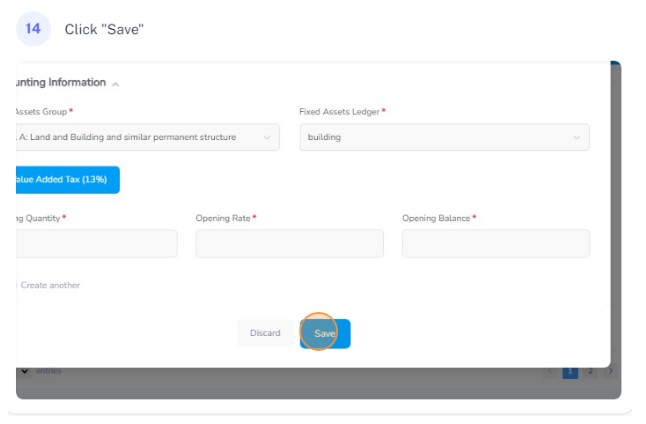
Click on save button to save the asset
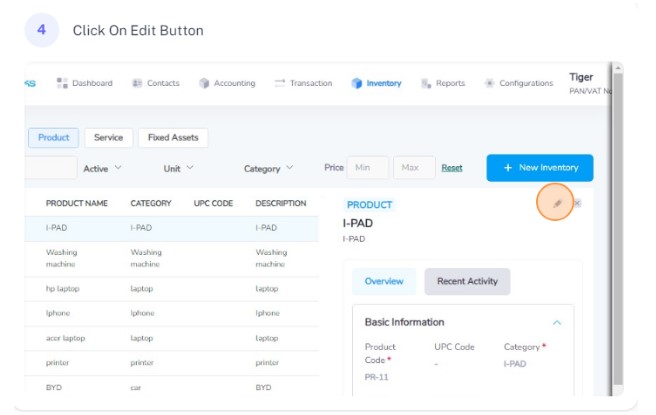
Click on the edit button
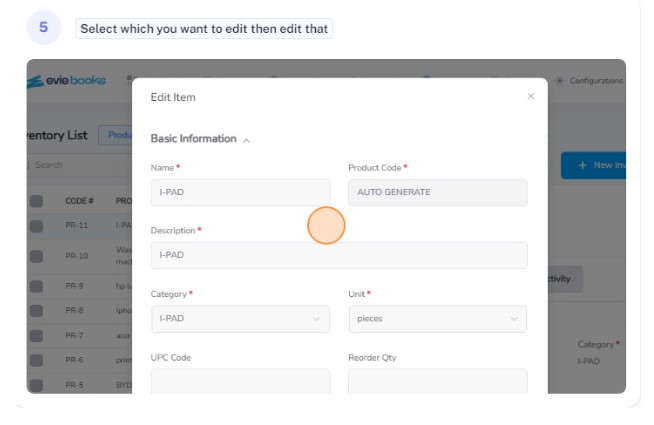
Edit the required details as needed
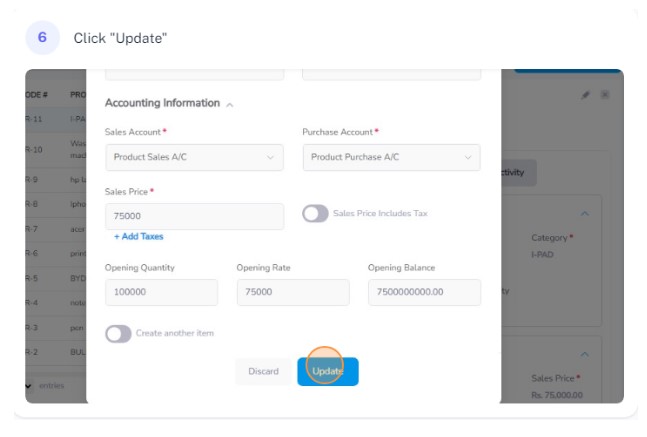
Click on the update button to update the changes